Manage Your Business
Staff Leave & Cover
Leave requests, approvals, affected-booking alerts, and bulk reassignment — one joined-up flow.
Works on
- iPhone
- Android
- Web dashboard
In short
Team members request leave from their own calendar. Operators see pending requests with a dashboard badge, approve or deny with a note, and the requester is notified. On approval, affected bookings are automatically flagged and a bulk cover screen opens for one-screen reassignment.
In detail
Leave management in most pet care businesses is a string of WhatsApp messages, a shared calendar that's six weeks out of date, and a frantic rearrangement of bookings on the morning someone calls in sick. Wagify replaces that with a proper workflow from first request to last booking covered.
A team member who needs time off opens their own calendar, selects the dates, adds a reason if they want to, and submits. That's it on their end. A notification lands with the operator and a badge appears on the team management screen: "1 pending leave request." The operator sees the request with dates, reason, and a view of what's currently booked for that person on those days — so they know before they approve whether cover is needed and roughly how much.
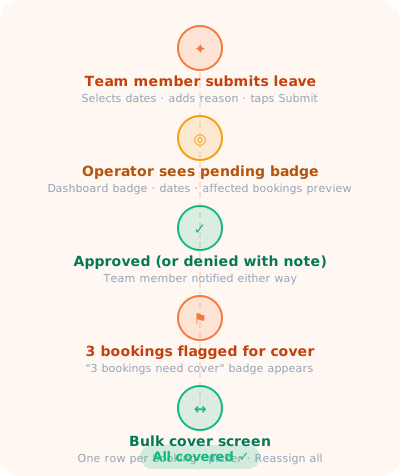
Approve or deny with an optional note. The team member is notified either way — "Your leave request for 14–16 May has been approved" or "Your request for 14–16 May wasn't approved — please see the note from Sarah." Professional, clear, no ambiguity.
On approval, Wagify checks every booking assigned to that resource on the leave dates and flags them. A "3 bookings need cover" badge appears on the operator's dashboard. Tap it and a bulk cover screen opens: one row per affected booking, showing the time, client name, service, and a resource picker on each row. The picker shows only resources with capacity at that time, so you're not accidentally double-booking someone else. Assign cover for all of them in one pass and tap "Reassign 3 bookings" to commit. Clients are notified that their booking has been reassigned — with the new team member's name, if your notification settings are configured that way.
If you can't cover all of them at once — maybe you're waiting for a team member to confirm — you can resolve some now and leave others flagged. The badge stays on your dashboard showing the remaining count until every affected booking is covered or the leave dates have passed. Nothing falls through the cracks quietly.
Questions about Leave
How does a team member request leave?
A team member submits a request from the calendar. The operator can approve or deny it with a note, and the requester is notified.
What happens to bookings affected by approved leave?
Affected bookings are flagged for cover. An operator can reassign them individually or work through a bulk cover view.
Try Leave free for 14 days
Every feature, no card required, up to four users.